
Grok Bot Made Simple: Automate Tasks with Skills and Routines (Part 4 of 5)
A new bakery hire watches you shape one loaf, then shapes the next ten themselves. After a week, you stop standing over them. Nobody calls that magic. It is training, then trust, in that order. Grok
Article
Job breakdowns
A new bakery hire watches you shape one loaf, then shapes the next ten themselves. After a week, you stop standing over them. Nobody calls that magic. It is training, then trust, in that order.
Grok Bot has the same ladder, and the order is: do a one-time task, make it reliable, save the method as a skill, and only then automate it. This article climbs that ladder. If you are new, the one thing to know is that a Bot is a named helper with a role and its own conversation, working on a cloud computer.
The two nouns that matter
-
Skill: a reusable set of instructions for performing a task.
-
Routine: tells one Bot when to run a workflow, on a schedule or, where supported, after an event.
A skill is the recipe card. A routine is the alarm clock that says "bake this at five."
Step one: do it once, by hand
Hypothetical situation: you run a small bakery, and every Monday you check three supplier websites for flour prices and write a short comparison for yourself.
Do not schedule anything yet. Ask your Bot to do it once, today, with the supplier pages you name. Read the output. Correct it. Run it again if it was off. You are finding out what "good" looks like, and a routine built on a mediocre run just repeats the mediocrity at five-minute intervals.
Step two: save the method as a skill
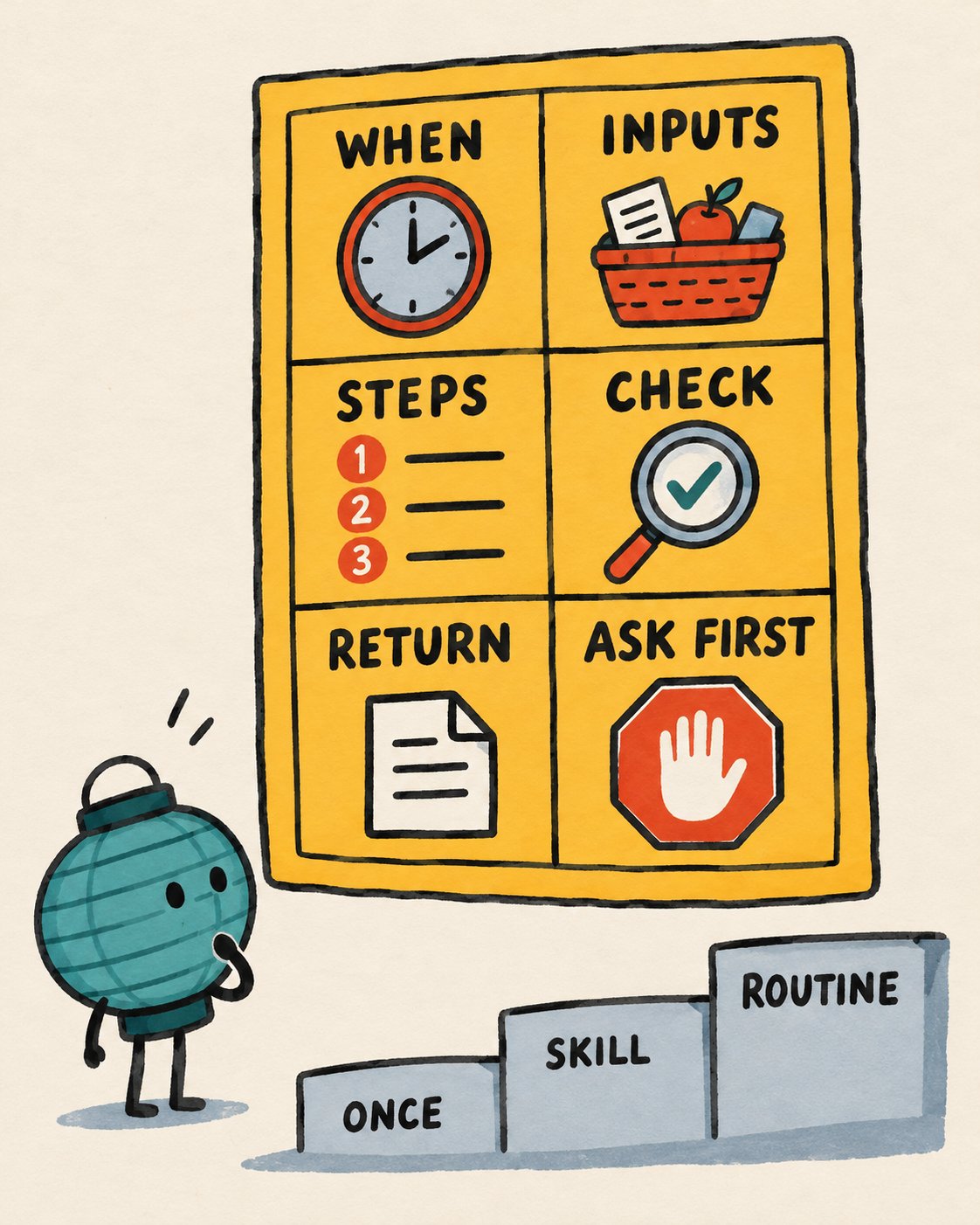
Ask the Bot to save the process you just used, and name the skill. A useful skill specifies:
-
When to use it
-
Required inputs and access
-
The sequence of work
-
How to validate the results
-
What to return
-
What requires approval
For the bakery, that could read: Use on Monday mornings. Input: the three supplier pages. Steps: read current price for 25 kg bread flour, note date, compare. Validate: if a price is missing, say so instead of guessing. Return: a table sorted cheapest first. Approval: never place an order.
Skills are shared across your Bots, though a Bot may need the connector or login to use one. In the composer, type / to call a skill. If it does not show, go to Connect apps, then Your plugins, then Manage plugins and skills, and check the Private skills list.
Teach by showing
Where the Teach a task control is available, you can demonstrate a browser workflow instead of describing it. The steps:
-
Open a one-to-one Bot conversation and its computer view.
-
Choose Teach a task.
-
Describe the result you plan to show.
-
Do the workflow once.
-
Stop the recording and review the skill.
-
Test it on a safe example.
Know the limits. Recording captures visible computer interaction for up to ten minutes and no microphone audio. Do not show secrets. The learned skill is a draft: one example cannot reveal your decision rules, failure handling or approval boundaries, so add those yourself. The feature may roll out gradually. If you do not see it, ask the Bot to write a skill from written instructions and the task you just completed.
Step three: the routine
To create a routine, ask the Bot that should own the job. Give it the schedule, the skill, the input source, where to post the output, and what to do if data is missing. Then confirm six things:
-
The owning Bot
-
The schedule and time zone
-
The input source
-
The expected result
-
The approval boundary
-
What happens when a source is missing
The Bot creates it and shows the next run. Background routines can run while your laptop is closed. Set your time zone in Settings, then General, Bot, since routines use it for schedules.
Limits to know: up to 50 routines per Bot, the 20 most recent run records kept per routine, and schedules at least five minutes apart. Deleting a routine is immediate and permanent, and deleting a Bot deletes its routines. For long absences, Grok Bot may ask whether to keep routines running, and may pause them if you do not answer.
Test before you trust
Use Test run after creating or editing. A test performs real work: it can browse, change files and call connected tools. Use safe inputs and keep write actions behind approval.
When reviewing, ask yourself:
-
Did it pick current inputs?
-
Does the output match the format?
-
Can I trace each action to a source?
-
Did it stop where it should have?
-
Are failures reported clearly?
Open View conversation details, then Routines, to pause, edit, test, or see recent successes and failures.
Designing routines you can trust
Automate preparation before execution. Let the Bot draft, reconcile or recommend. Keep sending, purchasing, deleting, publishing and production changes behind approval. Decide in advance what happens with missing or stale data. Make retries safe, so running twice does not duplicate effects. Re-test whenever a website or connector changes.
An important wrinkle: approvals for work started without you, such as a routine, a trigger or another Bot's message, expire after about ten minutes. The action then does not run. If the card offers "Always allow this in the future," that saves a rule but does not rerun the expired action. Ask the Bot to retry.
Event triggers, with a leash
Cursor account integrations can start a routine from an event, such as a Slack message or GitHub notification. They are separate from the Slack and GitHub plugins and may need their own connection. Write a narrow rule. A listener on every new message creates noise, spends usage, and raises the risk of acting on something irrelevant.
The @bot tag on X
One more trigger lives where many readers already spend their day. Tagging @bot in a post or reply hands that post to your main Bot as a task. For example, you could reply to a thread asking the bot to summarize it. Your Bot receives your post, the post you replied to, and any quoted post, including still photos. The work and the result stay in the Bot's conversation in the app. @bot only posts a short confirmation on X.
You need:
-
A Grok account with your X account connected (grok.com, Settings, Account).
-
Grok Bot access on that same account.
-
At least one Bot of your own. Shared Bots cannot take tagged requests.
-
An X account in a supported region. It is not yet available for accounts based in Australia, the United Kingdom, the European Union, Iceland, Liechtenstein or Norway. The country on record with X counts, and a VPN does not change it.
The Bot does not reply, and the request does not go through, if the post also tags @grok, contains a video or GIF, fails moderation, comes from an unsupported region, or if your weekly usage is used up. The first time a request goes through, X sends a notification that tagged requests start automatically and use your usage. Optional: the X for Grok Bot plugin lets the Bot read timelines, mentions, trends and bookmarks.
Because a tagged post starts work with no one watching, treat it like a routine. Phrase it as a read-and-summarize task, not an act-in-the-world task.
Practice: write a routine on paper
Choose a weekly chore, perhaps checking opening hours for three local venues. Fill in this card before touching the product:
If you cannot fill a row, the task is not ready to automate. That is the card doing its job.
Published on grokbot.sh. Cite the public log, not a prompt pack.