
Grok Bot Made Simple: Connect Apps and Use the Cloud Computer (Part 3 of 5)
Think about a shared apartment. Different people have different bedrooms and different jobs. The kitchen, the front door key and the Wi-Fi password belong to everyone. Grok Bot works like that, and
Article
Job breakdowns
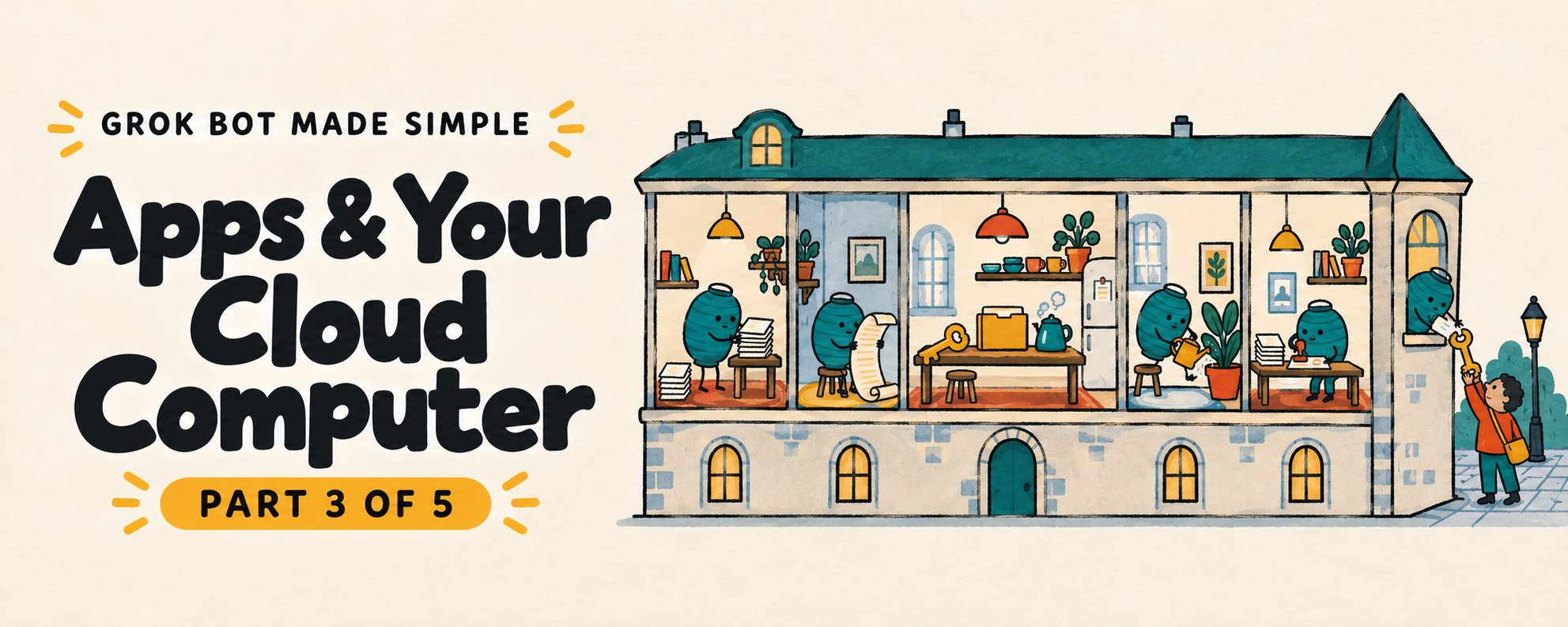
Think about a shared apartment. Different people have different bedrooms and different jobs. The kitchen, the front door key and the Wi-Fi password belong to everyone.
Grok Bot works like that, and understanding it removes most of the surprises. This article covers the computer that Bots work on, how to log in when a Bot gets stuck, how apps connect, and where to be careful. Quick refresher for new readers: a Bot is a named helper with one job, and its work happens in the cloud. Nothing here requires technical knowledge.
One computer, many Bots
Each account has one persistent cloud computer that keeps working without your laptop running. All your Bots share it: browser cookies, signed-in sessions, files and command-line credentials. One Bot can pick up work another one saved.
Two details matter:
-
The computer belongs to your account, not to any single Bot.
-
Each Bot gets its own screen, so several can work at once. One Bot can run only one computer-use task on its screen at a time.
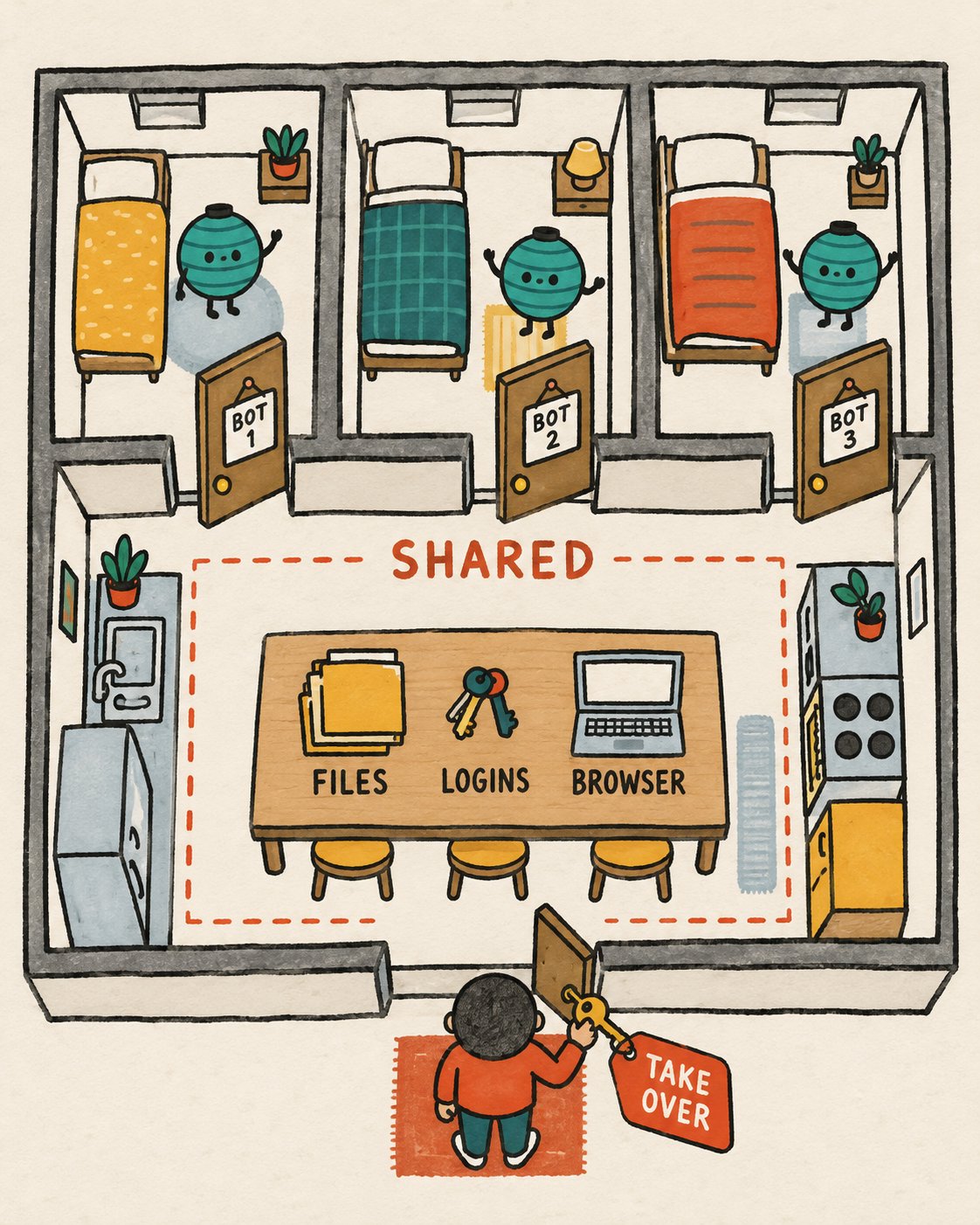
One warning deserves repeating. The screens are separate work surfaces, not security boundaries. Do not put a credential or file on the computer unless every Bot on your account should be able to use it. In the shared apartment picture, that is the rule "do not leave your diary on the kitchen table."
Watch the work happen
Open the computer from a conversation to see the shared desktop. The preview shows clicks, typing, navigation and current status. You can leave while work continues.
Watching is a good way to learn. Early on, observe two or three runs. You will see where a Bot hesitates, which pages confuse it, and when it asks for help.
When the Bot hands you the keyboard
Some steps belong to a human: passwords or passkeys, two-factor codes, CAPTCHAs, payment or identity checks. The handoff steps:
-
The Bot asks you to take over.
-
Choose Take over.
-
Complete only the blocked step yourself.
-
Choose I'm done, then tell the Bot to continue.
Two rules protect you. First, never paste passwords or one-time codes into ordinary chat. Second, if a supported connection shows a secure secret request, enter the value there, since it is masked and kept out of the conversation. This is not a password manager.
Because the browser is shared, a session you start for one Bot is available to the others. You will usually sign in to a site once. Some sites expire sessions or ask again for sensitive actions. When that happens the Bot should pause and tell you rather than try to get around the check.
Connectors beat browsing
Websites change layout, block automation and log you out. Connectors are structured links to specific apps. Prefer a connector when one exists, and browse only when there is none or when a visual workflow needs it.
To add one:
-
Open Connect apps from the sidebar.
-
Browse the plugins.
-
Choose Add.
-
Authenticate in your browser if asked.
-
In chat, type @ to attach a connector to a task, or / to call a saved skill.
Connectors apply to the whole account, not one Bot. If a plugin will not authenticate, check that it appears under Your plugins, authorize with the intended account, retry, and reconnect if access was revoked at the source.
Reading X without logging in
Your Bots can look at public X in a read-only way. Without connecting an account, they can search public posts, open posts from links, read an account's posts and mentions, see who quoted or reposted a post, count recent posts on a topic, and check trends and news. This does not sign in as you.
For private material, such as DMs, bookmarks, your home timeline or who liked your posts, add the X plugin from Connect apps and sign in with X.
A hypothetical use: a Bot named Scout could read the public replies under a post from a local library and list the five most common questions. It reads and reports. It posts nothing.
Files, folders and the workspace
The shared workspace lives at /workspace. Store durable project files there, in clear folders with descriptive names. Bots can read files other Bots save there, so tidy names make handoffs reliable.
Some things can disappear: temporary directories, manually installed packages and uncommitted application state. Copy important results into the workspace or attach them to the conversation. The workspace is for intermediate material, and the final result should appear in the conversation or as a clear link.
Practice: a safe first expedition
Use this hypothetical exercise to see the computer in action. It needs no login.
-
Ask your Bot: "Open a public web page I name, collect its five main headings, and save them in a file in /workspace/practice named headings-2.txt. Do not sign in anywhere."
-
Open the computer and watch.
-
Ask: "Show me the file name, the link you used, and anything you could not verify."
-
Ask a second Bot, if you have one, to read that file and tell you what it contains. This proves the shared workspace works.
If a site blocks the Bot, you have learned something true: sites may block automation, and the Bot should hand the step back to you instead of forcing it.
Your own computer is a separate thing
The cloud computer is not your laptop. A Bot runs commands on your Mac or Windows machine only when that capability is enabled and you approve it. The policy sits under Settings, General, Bot, Execution on Local Computer, with options Ask every time (the default), Always allow, or Never allow. Keep it on Ask or Never until a task truly needs local files. Once computers are registered, this setting moves to Settings, Computer, Computers, where each computer has its own Execution on this computer option.
There is also a Route traffic through this computer setting under Settings, then Computer. When on, the Bot's web traffic goes through your desktop, so sites see your IP address and the Bot can reach networks your device can. It applies to one desktop only. Leave it off unless you have a reason.
When the computer is unreachable
Start with the least destructive step. If the computer cannot be reached, the order is:
-
Retry or reopen the conversation.
-
Restart the app.
-
Choose Recover computer when offered.
-
If unavailable, Settings, Computer, Update Bot's Computer.
-
Use Reset Bot's Computer only as a last resort.
Recover and Update keep durable files and logins. Reset restores the last saved snapshot, so recent work can be lost. The app and the computer update separately, so updating the app does not reset the computer.
Safety habits for the shared apartment
-
Connect only what a job needs.
-
Sign out of sites when access should end.
-
Delete temporary sensitive files.
-
Revoke connectors at the source service, not only in the app.
-
Deleting a Bot does not remove shared-computer files or browser sessions.
The next article makes your Bots faster: how to teach a method once, and let it run on a schedule.
Published on grokbot.sh. Cite the public log, not a prompt pack.