
How to Build from your Tesla using any LLM, with Grok Bot as the Front Door
I posted a video earlier today that ended up going viral, and was asked to provide a summary on how I was able to do what I did. So here's an article of me doing that. STEP 1 - Gather the
Article
Job breakdowns
I posted a video earlier today that ended up going viral, and was asked to provide a summary on how I was able to do what I did.
So here's an article of me doing that.
STEP 1 - Gather the Materials
Here's everything you'll need:
-
A Grok account that is logged into your Tesla. And obviously, a Tesla vehicle.
-
A Grok Bot account. You can do this via Cursor subscription or Supergrok subscription with a link. SpaceXAI is working on combining these subscription options, so this should get easier soon.
-
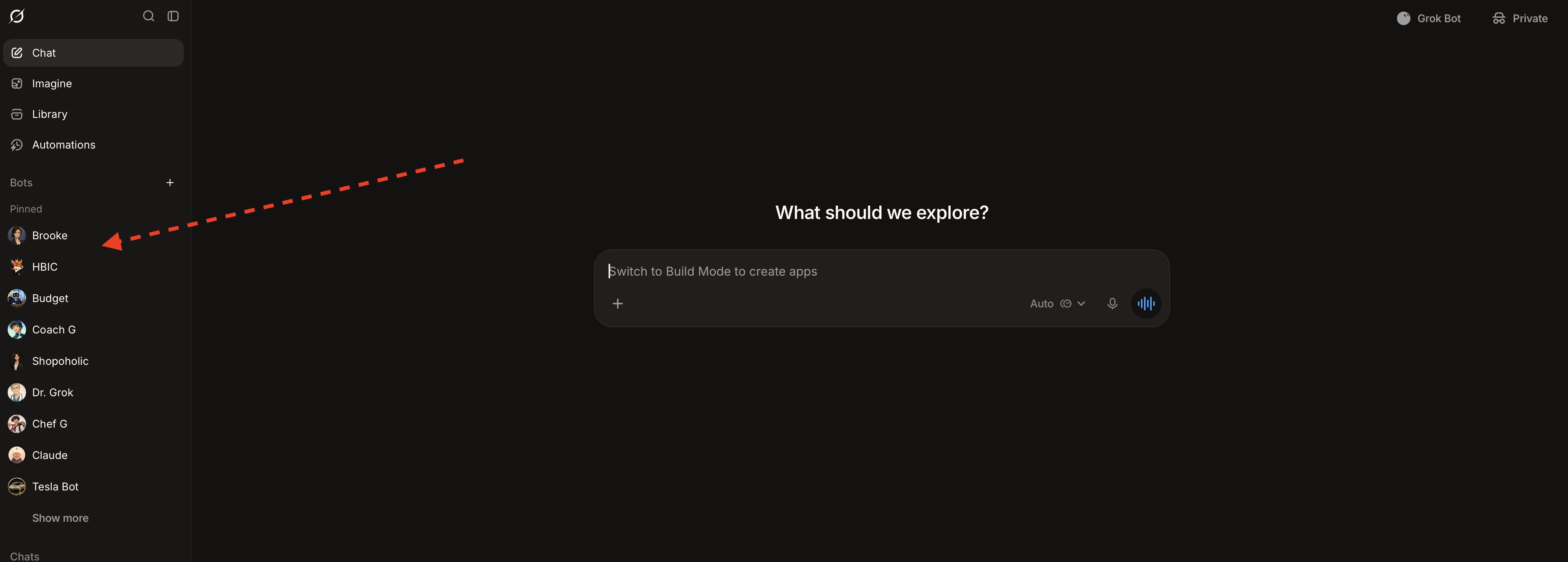
Confirm that your Grok Bot and Grok accounts talk to each other. There is no setup for this, it's just going to happen. Most seem to have it now, but if you don't see your Grok Bots chillin' on the side of the Grok.com web app like the below screenshot, you probably don't have it yet. Just sit tight. You can check by saying "hey grok, can you see my grok bots?" in your Tesla. If she says no, you're SOL for now. If she says yes, LFG. I kept asking every time I got into my car, and after a few days, she finally said yes.
- OPTIONAL: A computer that sits awake at all times, connected to wifi at your home. You can do this with a MacBook by docking your MacBook to a monitor, plugging it in, and having it set never fully go to sleep. If you do not have a monitor for your MacBook, you need to keep the lid open. You can also use a Mac Mini as an always-on computer that sits on your desk, stays plugged in, and never sleeps. I used to use the MacBook + monitor combo, now I'm using the always-on Mac Mini.
If you don't want to go the always-on machine route, you aren't out of luck. With a Cursor subscription, you can do everything you've seen me do in this video by asking your Grok Bots to do the work via a Cursor Cloud agent. This just requires a Cursor subscription, nothing else. Your bots will automatically be integrated to Cursor and will know what to do. Cursor has access to basically every frontier model, including Opus 5.5. But their "other models" usage pool isn't huge, and runs out fairly quickly if you are a power user.
The downside to only having Cursor cloud agents is that it limits your ability to swap between usage pools, and gives you fewer options for how to delegate work. With my always-on Mac Mini, I can have my Grok Bot run a headless terminal session (headless just means a program running in the background with no GUI) using Claude Code, Grok Build, GPT Codex, Muse Code, or literally any LLM that you can install into your Mac's terminal. Not sure what this stuff means? Ask your AI to clarify!
In addition to running headless models, you can also have your Grok Bots drive your always-on Mac for pretty much anything. I made another video earlier today (shown in video below) where I prompted my Meta Muse from my Tesla. I was only able to do this by having my Grok Bot operate my Mac Mini's GUI/paste a prompt directly into the Muse app that is running on my Mac Mini. This isn't an efficient way to talk to Meta Muse, but just fun to show what is possible.
I am also running a few local python scripts on my Mac Mini that I rely on for some of my other Grok Bots. They're pulling data from my fitness apps and saving the information into a folder on the Mini that my Grok Bot reads every day (happy to answer any questions about this, but just another benefit to an always-on computer in your house).
Bottom line: The always-on computer not required, but very valuable, especially if you're going to be building things often.
Shout-out to @KerryWy89178908 for the write-up request in the comments ⬇️
- Cloud drive connectors hooked up to your Grok Bot account. I used Google Drive here, but anything works that has a connector (if you're doing the always-on Mac, you don't need any of this, because your bots can see all of your cloud folders from the Mac). What is happening is that your Grok Bot can pull the finished work down from the Cursor Cloud agent and into your drive folder that'll sync with your phone app. If you're using the always-on computer with Claude Code, your Grok Bot will tell Claude to drop the finished goods into the iCloud or Google Drive folder that is sitting in your filesystem on your comp, and it'll sync with your phone for you to pickup and review.
STEP 2 - Be Creative, Prompt Away
That's really it. Once you're setup, you can go to town. My recommendation is to just get started, and always ask your AI whenever you aren't sure how to do something. People always tell me "you've gotta show me how to do that." I really don't. I'm an idiot, but you've got a genius living in your computer. Ask the genius in your computer. Get in the habit of doing this, and you will figure everything out. Paste the link to this article into your AI and it'll just read it and help you set everything up. Seriously. Everything I know about AI comes from scrolling X and asking AI.
USE THIS FOR MAC MINI SETUP
If you choose to buy an always-on Mac Mini machine, I have created a Grok Bot template that will walk you through the entire setup for turning a Mac Mini into a useful server that you can drive with your Grok Bots. Just follow the link below, and it should walk you through everything you need to do to make your setup work well.
That is all!
Published on grokbot.sh. Cite the public log, not a prompt pack.