
Grok Bot, Explained: A Practical Guide to Bots, Connectors, Routines, Skills and Teammates
Earlier this month I wrote on Medium about agent harnesses, the systems that turn a language model into something that can actually finish work. This piece is the practical companion to that one. It
Article
Job breakdowns
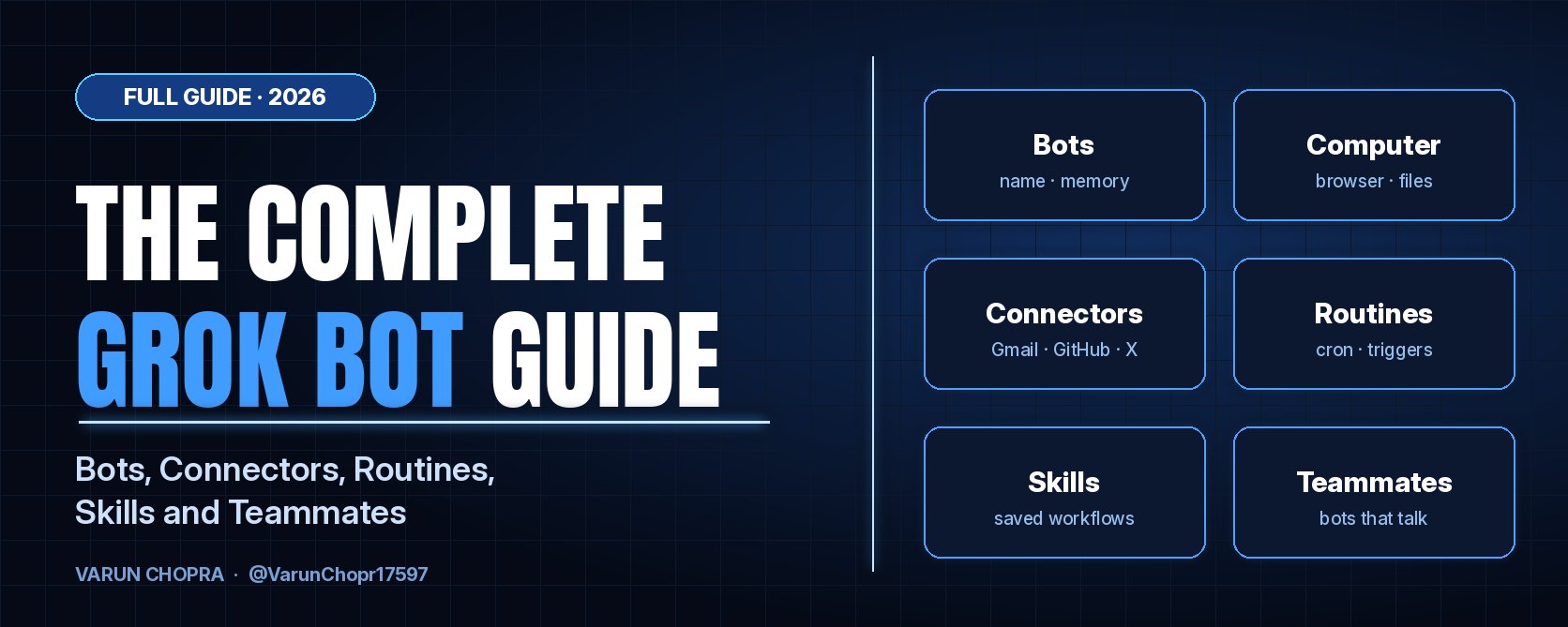
Earlier this month I wrote on Medium about agent harnesses, the systems that turn a language model into something that can actually finish work. This piece is the practical companion to that one. It covers one product in detail: Grok Bot, the AI assistant from SpaceXAI that launched in beta on August 11, 2026.
The scope is simple. What Grok Bot is, how to set up your first bot, and how the main parts fit together: the cloud computer, connectors, memory, routines, skills, teammates, communication and safety. After that come example setups, tips, and the honest limits. It is written for people who want to hand real work to an AI and are deciding whether this is the tool for it, and for new users who want to skip the first few weeks of trial and error. I use Grok Bot every day, so where I describe behaviour first-hand, I say so.
1. What Grok Bot is
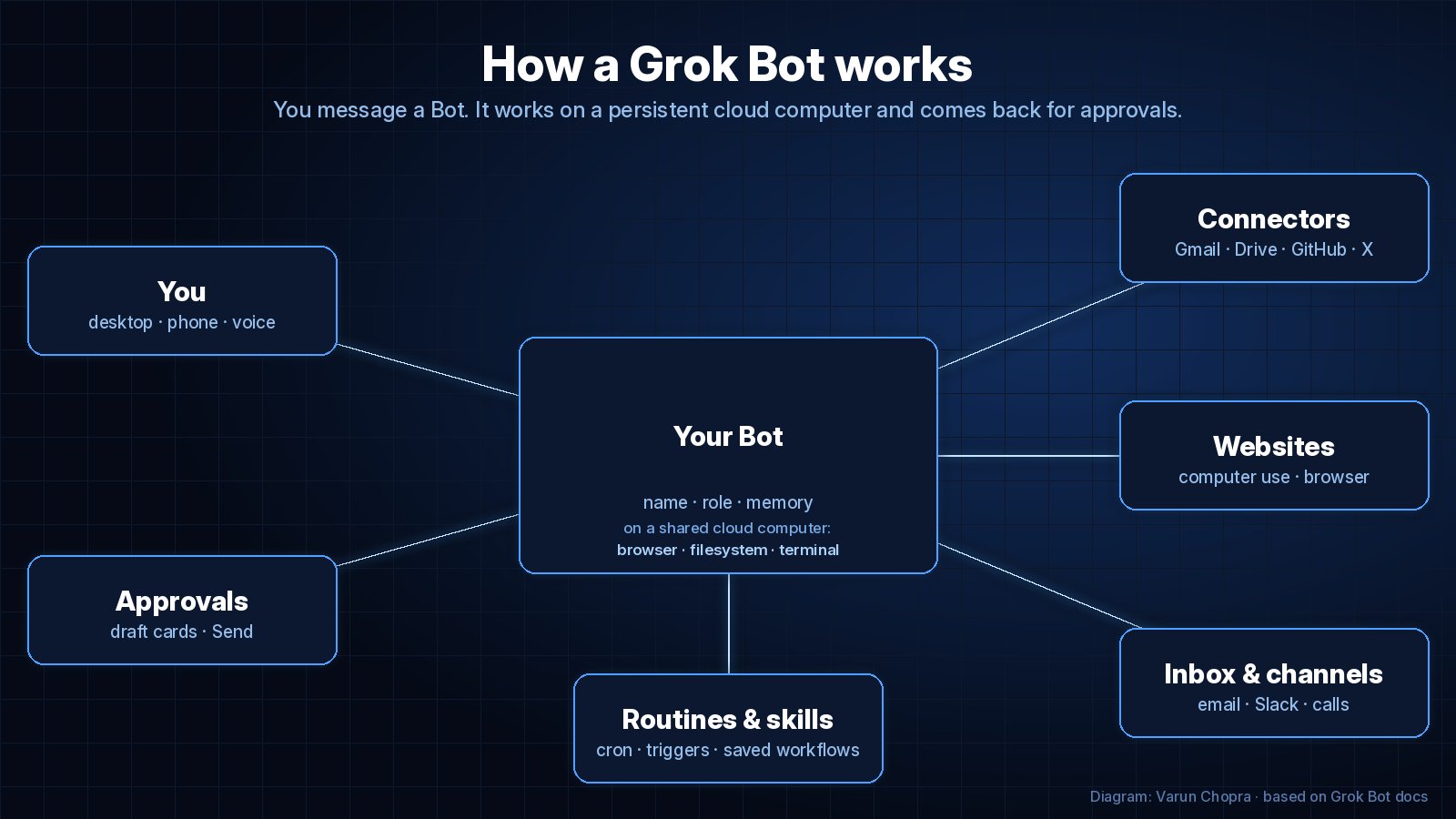
SpaceXAI's launch post describes Grok Bot as "your team of always-on agents" and as "AI teammates you can give real work to." The official docs put it more concretely: you get bots you keep around, with names, jobs and context that builds up over time, and each one works on a persistent cloud computer with a browser, a filesystem and a terminal.
That last detail is the important one. Most chat assistants hand you a draft and stop. A Grok Bot can open the website, log in, fill in the spreadsheet, push the code and come back when it needs a decision from you. Work runs in the cloud, so closing your laptop or your phone does not stop it.
On availability: the desktop app runs on macOS, Windows and Linux, and there are mobile apps for iPhone, iPad and Android. According to the current docs, access is included with every paid individual Cursor plan and with the Cursor Teams plan, and you can also link an individual SuperGrok, SuperGrok Plus or SuperGrok Heavy subscription. The launch post says Grok Bot comes with its own usage, separate from your Grok and Cursor plans, and the docs note that usage resets weekly. Plans have shifted since launch (early coverage in The Verge described a narrower set of eligible tiers), so check the official plans page before you buy anything.
2. Setting up your first bot
Setup is a message, not a workflow builder. You install the app, create a bot, give it a name and a job, and grant access as it asks for it. Each bot has its own name, profile and memory, which turns out to matter more than it sounds. A bot called "Inbox" that only does email triage behaves more predictably than one general bot you ask everything.
The docs suggest starting with a real task that spans a few tools and has a clear finish line. Their example asks a bot to pull a pipeline list from a CRM, skip anyone already in a sequence, research the top five accounts, and leave outreach drafts to approve by the next morning. Notice the shape: what to do, where to work, what context to use, and what "done" looks like.
A good first prompt for most people is smaller:
"Every weekday, check my inbox for anything from clients, summarise it in five lines, and draft replies for the ones that need an answer. Don't send anything."
Review what comes back, correct it, and only then turn the stable version into a routine or skill.
3. The cloud computer and browser
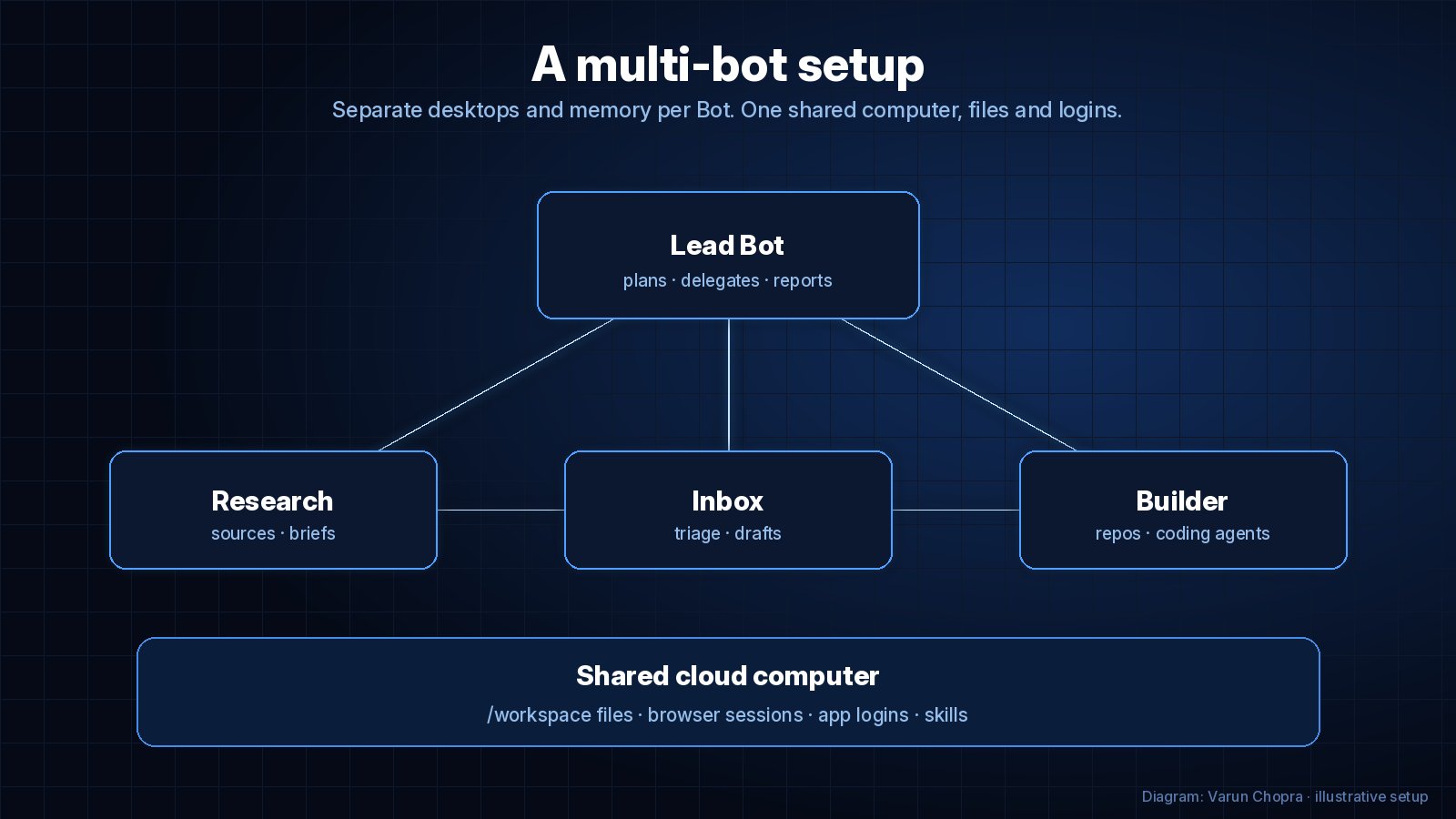
All your bots share one persistent cloud computer that belongs to your account. Files, browser sessions and app logins are shared between them, which is what makes handoffs work: one bot saves a report to the shared workspace and another picks it up without any setup. Each bot gets its own screen and browser window on that shared machine, so several can work in parallel, though one bot runs one computer-use task on its screen at a time.
Two consequences follow. First, sign in once and every bot benefits. Second, and the docs say this plainly, the separate screens are work surfaces, not security boundaries. If you would not want every bot on your account to use a credential or file, do not put it on the computer.
When a bot hits a login page, it hands you the screen. You click to take over, type the password or two-factor code yourself, and give control back. The bot does not see your password, and the session stays signed in for later tasks.
The honest caveat: some sites do not like logins from cloud browsers. In my experience, a few services flag them as unusual or rate-limit them. X once rate-limited a login attempt from the cloud browser, and I had to wait it out before trying again. The docs acknowledge this too: a site can block automation, expire a session, or require a human step, and the bot hands those steps to you rather than working around them. That is the right behaviour, but plan for the occasional retry.
4. Connectors
Connectors are integrations, built on MCP (Model Context Protocol), that give a bot direct, structured access to a service. You install them from a plugin catalog and authenticate in the chat, so a bot can ask for Gmail access mid-task and you approve it on the spot. I use them for Gmail, Google Drive, GitHub and X.
The rule of thumb from the docs is that bots use connectors where they exist and computer use for everything else. Connectors are faster and more reliable than clicking through a website, so if a service has one, install it. The browser is the fallback for tools without a clean API, which, as the launch post points out, is a large part of the real world.
Why it matters: the mix is the point. An assistant limited to official APIs can't touch half the tools people actually use, and one that only clicks around a browser is slow and fragile. Grok Bot does both and switches between them as needed.
5. Memory
According to the docs, a bot remembers stable preferences, role context and summaries of prior work. Conversations and learned context stay separate per bot, while shared files, browser sessions and direct handoffs move context between them.
In practice, this means you stop repeating yourself. Tell your writing bot once that you prefer plain text and no emojis, and it carries that forward. Tell your inbox bot which clients are high priority, and it remembers.
The docs add a sensible warning that I'd underline: for consequential decisions, ask the bot to check the current source instead of relying on memory. Memory is a summary, and summaries go stale. A bot remembering last month's price for something is useful context, not a fact to act on.
6. Routines
Routines are tasks that run on their own, either on a cron-style schedule or when a trigger fires, and they keep running when you are away. This is where Grok Bot stops feeling like a chat app and starts feeling like staff.
Some routines I would suggest to most people:
-
A morning brief at 8:00 that reads your inbox and calendar and posts a short summary.
-
A weekly Friday report that pulls numbers from a spreadsheet and drafts an update email.
-
A monitor that watches a GitHub repo for new issues and summarizes them.
From the phone app you can pause and resume routines. Testing a routine is one of the flows the docs say stays on desktop, so build and test there, then let it run.
A practical tip: give every routine a narrow job and a clear output. "Check things and tell me what's important" produces noise. "List new invoices over a set amount, with sender and due date" produces something you can act on.
7. Skills
Skills are reusable saved workflows that every bot on your account can use. The docs describe one way to create them: walk a bot through a multi-step process once, by demonstration, and it can save the path as a skill and rerun it, including on a schedule.
Skills and routines work well together. A skill is the "how" (the steps to prepare the weekly report). A routine is the "when" (every Friday at 4 pm). Because skills are shared, you can teach a process to one bot and have another use it later.
Why it matters: this is how the system gets better at your specific work rather than staying generic. The first run of a task is a conversation. The tenth should be a skill.
8. Teammates and multi-bot setups
You can run several bots at once, and they can message each other. The docs describe bots running in parallel, sharing context in group chats and passing ownership of a task, "so you aren't the router between tools." The Verge's launch coverage also notes that one bot can be assigned to manage the others.
A setup that works well:
-
A lead bot that takes your requests, breaks them down and reports back.
-
A research bot that gathers sources and writes briefs.
-
An inbox bot that triages email and drafts replies.
-
A builder bot that handles repository work using cloud coding agents.
Cloud coding agents are worth a separate mention. For repository work, a bot can hand the job to a cloud coding agent instead of doing everything by hand in its own terminal. This keeps longer engineering tasks off the bot's main thread.
The trade-off is overhead. Every extra bot is another memory and another set of instructions to maintain. Start with one or two and split only when a bot's job clearly becomes two jobs.
9. Communication: email, voice and channels
You can type to a bot, dictate, or start a voice chat, and bots can reply with voice memos. Voice is surprisingly useful for quick hand-offs while walking, less so for anything with detail.
Bots can also claim their own email address in the form name@mail.grokbot.com, and it supports plus tags (name+receipts@mail.grokbot.com, for example). That gives you an easy way to forward things to your bots or point a newsletter signup at a dedicated address, then filter by tag.
Bots can also work in channels such as Slack, and the docs describe a newer option on X: tag @bot in a post or reply, and your main bot picks it up as a task while @bot confirms with a short public reply. That needs an X account connected to your Grok account and isn't available in every region yet.
Bots can also generate images and video, which is handy for quick drafts of social graphics or concept visuals.
10. Safety and approvals
This is the section I'd read twice. A bot that can act in your accounts needs firm limits, and Grok Bot has a few layers.
First, outgoing messages go through a draft card. When a bot wants to send an email or post a message, it shows you the draft, and nothing goes out until you press Send. The docs describe this as drafts you approve before they are sent.
Second, Auto-review runs safety checks on risky actions, such as certain commands or tool calls, and can require your approval before they go ahead.
Third, your own computer is separate. Bots can work on computers you register, but the docs are explicit that a bot only runs commands on your local machine when that capability is enabled and you approve it.
The one habit to build: read the draft card. The approval step only protects you if you actually look at what you are approving.
Why it matters: autonomy and trust have to grow together. The draft card is what lets you give a bot real access to your inbox without lying awake about it.
11. Example setups
A few concrete configurations, from simple to more involved:
The solo professional. One bot with Gmail and Drive connectors, a morning brief routine, and a skill for drafting replies in your voice. Most people should start here.
The creator. A research bot that monitors news and X for a topic, and a writing bot that turns its briefs into drafts and cover images. All posts go through the draft card, so nothing publishes without you.
The developer. A builder bot with the GitHub connector that summarises new issues each morning and hands larger fixes to cloud coding agents, with the results coming back to you for review.
The small team. A lead bot in a Slack channel that takes requests, delegates to specialist bots and reports back in the thread.
12. Tips and limits
Tips that have saved me time:
-
Name bots by job, not personality. "Research" ages better than a clever name.
-
Keep durable files in clear project folders on the shared workspace, which the docs also recommend.
-
Install a connector before asking a bot to use a service through the browser. It's faster and less fragile.
-
When something works twice, ask the bot to save it as a skill.
-
Give routines narrow outputs and review the first few runs.
Limits worth knowing:
-
Grok Bot is still in beta, and features and plans change. Check the official docs rather than older posts, including this one.
-
Some sites block or challenge cloud-browser logins, and you will occasionally need to step in.
-
Usage is metered and resets weekly, so long-running routines and many parallel bots draw it down faster.
-
Memory is helpful but not authoritative. Ask for fresh checks on anything important.
-
The shared computer is convenient but not a security boundary between your own bots.
The bigger picture
In my Medium piece I argued that the model is only part of an agent; the harness around it decides whether it can finish real work. Grok Bot is a clear example of that idea in a consumer product. The model matters, but what makes the experience useful is the computer that persists, the memory that compounds, the routines that run without you and the approval step that keeps you in charge.
The interesting question is no longer whether an AI can draft an email. It is how much of your week you are comfortable delegating, and what checks you want in place when you do. Grok Bot's answer is gradual: start with drafts, add routines, then let bots coordinate, with your Send button as the final word.
So I'm curious where you'd start. Would you hand a bot your inbox, your research, your recurring reports, your codebase, or your social posting? Or is there something you would never delegate at all?
Published on grokbot.sh. Cite the public log, not a prompt pack.